
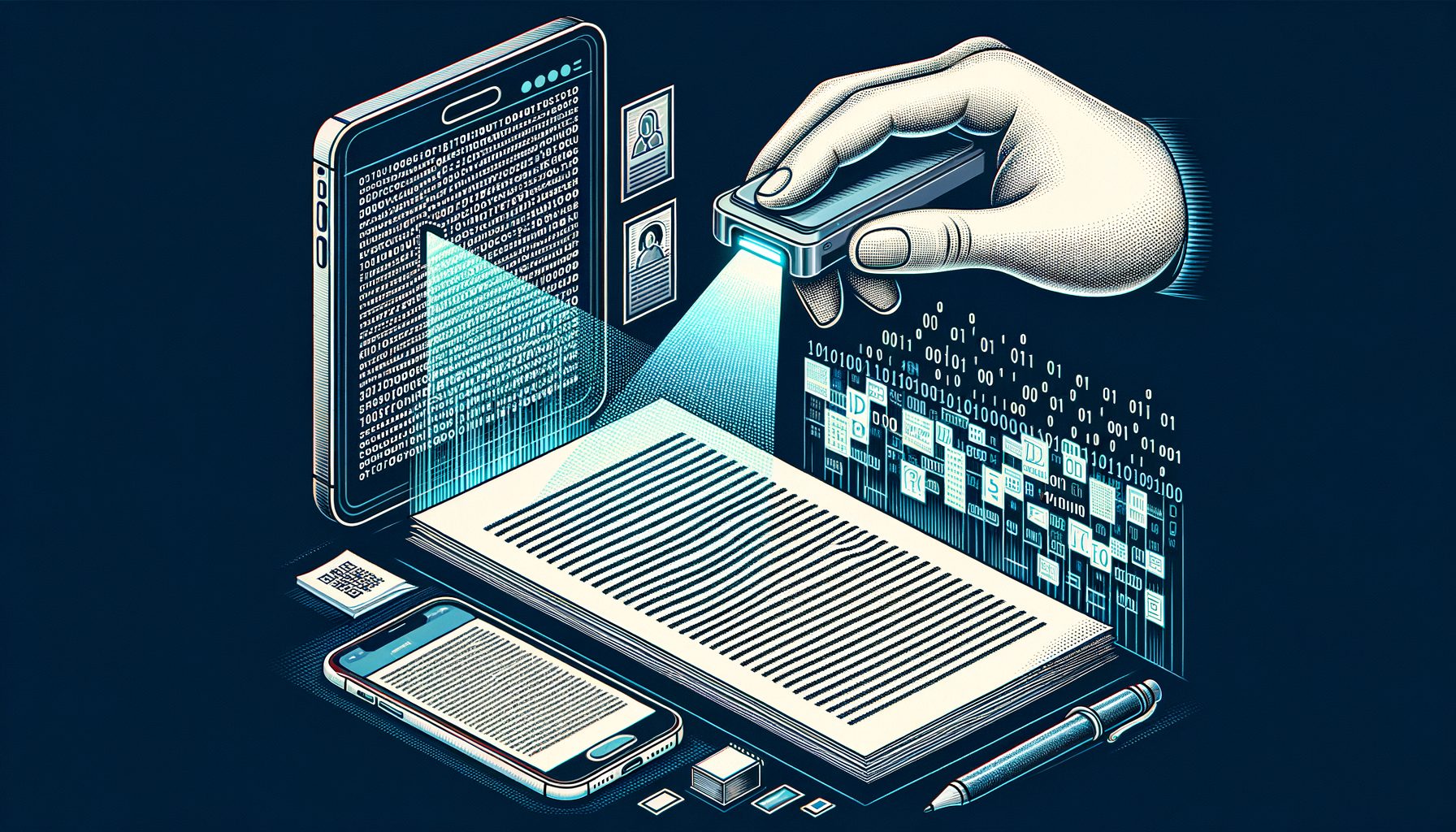
You probably have thousands of images, PDFs, or scans where text is trapped and impossible to search. That means wasted time retyping, missed insights in invoices or reports, and manual errors that cost money. Optical Character Recognition (OCR) fixes this by converting pictures of text into real, editable words. In this guide, you will learn what OCR is, how it works, which tools to pick, and practical steps to build a reliable text extraction workflow—whether you manage receipts at a startup, digitize records for a school, or automate document processing in a large enterprise.
Sponsored Ads
What Is OCR and Why It Matters Today
Optical Character Recognition (OCR) is the process of turning text inside images or scanned PDFs into machine-readable text. When you take a photo of a contract or download a scanned report, the content looks like text to your eyes, but to a computer it is just pixels. OCR bridges that gap. With OCR, you can copy, search, index, translate, redact, and analyze text across documents at scale.
Why it matters now: the volume of unstructured documents is exploding. Think bills, ID cards, receipts, shipping labels, lab results, textbooks, and handwritten notes. According to industry research, knowledge workers still spend hours per week searching for information buried in files. OCR reduces that drag. For teams building AI workflows, OCR is the first step in document intelligence pipelines such as intelligent document processing (IDP), where text extraction feeds into classification, entity recognition, or analytics. For Gen Z freelancers and small businesses, OCR turns messy screenshots or phone photos into clean text for content creation, expense tracking, or study notes. For global readers, modern OCR supports hundreds of languages, including right-to-left scripts and complex characters.
OCR also matters for accessibility and compliance. Searchable documents enable screen readers, making content usable for people with visual impairments. In many industries—finance, healthcare, government—keeping searchable, indexable records helps meet audit requirements and data retention policies. In short: OCR unlocks productivity, compliance, and inclusive access to information.
How OCR Works: From Pixels to Searchable Text
At a high level, OCR converts pixels to characters through a pipeline: image capture, preprocessing, text detection, recognition, and post-processing. Each step boosts accuracy, especially on real-world images taken under poor lighting or with skew.
1) Image capture: Your input could be a flatbed scan, a phone photo, a webcam snapshot, or a multipage PDF. Better inputs deliver better results. Aim for 300 DPI or higher for printed documents, hold your phone steady, and avoid glare on glossy paper.
2) Preprocessing: The system cleans the image to make text stand out. Typical steps include de-skewing, noise removal, binarization (thresholding), contrast normalization, and perspective correction. For receipts and IDs, even small improvements (like cropping borders) can increase recognition confidence by several points.
3) Text detection and layout analysis: Modern OCR detects where text lines and blocks live before attempting recognition. This is crucial for multi-column pages, tables, forms, and receipts. Detectors find bounding boxes for lines, words, or characters. Good layout analysis preserves reading order so the final text matches how a human would read the page.
4) Text recognition: Traditional engines used hand-crafted features and character templates. Today, deep learning models dominate, using convolutional neural networks (CNNs) and recurrent or transformer-based architectures to map image segments to sequences of characters. Printed text in common fonts can reach very high accuracy; handwriting is harder but improving thanks to specialized models.
5) Post-processing: The raw output often includes confidence scores per token. Spell-checkers, language models, and domain dictionaries (e.g., product names, medical terms) correct errors. For structured documents, parsing rules validate numbers (like dates and totals) and reject unlikely patterns.
Key concepts to know: – OCR vs. ICR: OCR focuses on printed text; Intelligent Character Recognition (ICR) targets handwriting. – OCR vs. OMR: Optical Mark Recognition detects filled checkboxes or bubbles. – On-device vs. cloud OCR: On-device (e.g., Tesseract) supports privacy and offline use. Cloud APIs (e.g., Google Cloud Vision, AWS Textract) offer high accuracy, handwriting support, and form/table extraction, but send data to providers. – Confidence scores: Many pipelines set a threshold (for example, accept words above 0.9 and flag below that for review). This enables “human in the loop” quality control.
In practice, the “secret” to great OCR is not only the model—it is the pipeline. Good lighting, proper crop, and clear contrast can outperform a more advanced model fed with poor inputs. For most users, that means: stabilize the camera, avoid shadows, and choose file formats that preserve quality (TIFF or high-quality PNG/JPEG; searchable PDFs when available).
Choosing the Right OCR Tool: Accuracy, Speed, Cost, and Privacy
There is no single best OCR engine for every case. Your choice depends on document types, volume, languages, handwriting needs, latency, budget, and compliance. Below is a quick comparison of popular options. Accuracy ranges are indicative on clean, printed English; real-world results vary by image quality, font, and layout complexity.
| Tool | Printed Text Accuracy | Handwriting Support | Deployment | Typical Cost | Notes |
|---|---|---|---|---|---|
| Tesseract (Open Source) | 95–99% | Limited (ICR via add-ons) | On-device | Free | Great with good preprocessing; many languages; needs tuning |
| Google Cloud Vision OCR | 98–99%+ | Yes | Cloud | Pay-as-you-go | Strong for complex layouts; good language coverage |
| AWS Textract | 98–99%+ | Yes | Cloud | Pay-as-you-go | Good for forms and tables; integrates with AWS stack |
| Microsoft Azure Computer Vision | 98–99%+ | Yes | Cloud | Pay-as-you-go | Solid handwriting OCR; extensive language support |
| ABBYY FineReader / FlexiCapture | 98–99%+ | Yes | Desktop/On-prem/Cloud | License | Enterprise-grade, robust layout and validation tools |
Personal experience perspective: in a pilot digitizing 20,000 retail receipts, a simple OpenCV preprocessing pipeline (auto-rotate, adaptive threshold, denoise) paired with Tesseract increased line-level recall by 6–8% versus raw images. For handwriting (e.g., delivery notes), cloud APIs performed better and reduced manual correction time by roughly a third. If your documents are highly regulated (IDs, medical records), on-device or on-prem solutions help satisfy privacy and residency requirements.
Decision tips: – If you need offline processing or maximum control: start with Tesseract and PyTesseract. – If you need top accuracy on mixed layouts, handwriting, and tables: try Google Cloud Vision, AWS Textract, or Azure OCR. – If you are an enterprise with complex validation workflows: consider ABBYY solutions. – If latency matters on mobile: use on-device OCR (e.g., platform SDKs) with lightweight preprocessing.
Useful links: Tesseract OCR, Google Cloud Vision OCR, AWS Textract, Azure OCR, ABBYY FineReader, PyTesseract, OpenCV.
Practical Steps to Build a Reliable OCR Pipeline
Here is a clear, field-tested approach you can use for most document types. You do not need a large team—just follow the steps and iterate.
1) Define the goal: Decide what you need to extract. Whole-page text? Key fields like invoice number, total, and date? Table rows? Knowing the target lets you select the right tool and evaluation metric (character accuracy, word accuracy, field-level F1, or table cell recall).
2) Collect sample data: Gather 50–200 representative pages across scenarios—clean scans, phone photos, crumpled receipts, different fonts and languages. Split into train/tune/test sets if you plan to fine-tune models or tweak preprocessing rules.
3) Preprocess wisely: – Deskew: rotate images to horizontal baselines. – Denoise: use median or bilateral filtering. – Threshold: adaptive thresholding helps with uneven lighting. – Crop and straighten borders. – For color documents with stamps or highlights, keep color—over-aggressive binarization may remove important marks.
4) Pick the engine: Start with an easy baseline (Tesseract for printed text). For forms with handwriting or multi-column layouts, evaluate one cloud API. Measure accuracy and time per page on your sample set.
5) Add post-processing: Use dictionaries, regex patterns, and validation rules. For example, invoice totals must match a currency format; dates must be valid calendar dates. Fuzzy matching can map vendor names to a master list even if OCR introduces small errors.
6) Human-in-the-loop review: Implement a light review UI for low-confidence fields. Show the cropped region next to extracted text so reviewers can fix errors quickly. Even reviewing 10–20% of items with the lowest confidence can raise overall quality to production standards.
7) Export and integrate: Output to CSV, JSON, or searchable PDF. Push results to spreadsheets, databases, or RPA workflows. Keep a log of source files, versioned models, and engine settings for traceability.
8) Monitor and improve: Track accuracy, exception rates, and review time. Every few weeks, retrain or retune your pipeline with the latest errors. Small, steady improvements compound.
Common pitfalls and fixes: – Low contrast or glare: retake the photo, or use contrast stretching and glare suppression. – Skewed images: auto-rotate by detecting text baselines. – Tiny text: upscale before OCR; use a higher DPI scan. – Multilingual pages: enable the correct language packs; auto-detect language if available. – Complex tables: use engines that extract tables or apply table detectors, then recognize cell by cell.
If you are building for mobile, consider on-device preprocessing (crop, enhance) and defer heavy OCR to a server for consistency. For sensitive data, encrypt in transit and at rest; if you must use cloud APIs, apply masking for PII before upload when possible.
Q&A: Common OCR Questions
Q1: Is OCR accurate enough for legal or financial documents?
In many cases, yes—especially for printed text. Use high-quality scans, validate key fields with rules, and keep a review step for low-confidence items. For strict compliance, store the original files and the extracted text together.
Q2: Can OCR handle handwriting?
Modern engines support handwriting, but accuracy varies by writer and language. Expect higher error rates than printed text. For critical fields, use forms that guide handwriting (block letters, clear boxes) and add human review.
Q3: What image format and DPI should I use?
For scans, 300 DPI TIFF or high-quality PNG/JPEG works well. For photos, ensure good lighting and flat pages. Avoid heavy compression that adds artifacts.
Q4: How do I keep data private?
Use on-device or on-prem OCR when possible, encrypt files, and restrict access. If you use cloud APIs, review their data handling policies and disable data logging or model training on your documents. Consider regional endpoints for data residency.
Conclusion: Turn Static Files into Searchable Knowledge
We covered the core of OCR: what it is, how it turns pixels into words, how to choose the right tool, and a practical pipeline you can implement today. The big takeaway is simple: OCR is not magic, but with the right inputs, preprocessing, and post-processing, it becomes a reliable engine for text extraction across receipts, contracts, forms, books, and more. Whether you are a student organizing study notes or a global enterprise automating back-office tasks, OCR saves time, reduces errors, and unlocks data you already own.
Now it is your turn. Pick a small batch of your most painful documents—say 100 receipts or 50 multipage PDFs—and run a quick trial. Start with a baseline engine, add minimal preprocessing, and measure results. If you need handwriting or table extraction, test a cloud API in parallel. Set a simple target (for example, 98% word accuracy or 95% field precision), add a light human-in-the-loop review, and iterate. Within a week, you can go from static images to searchable, actionable text.
If you are ready to move faster, integrate OCR with your favorite tools: push results to Google Sheets, a database, or an analytics dashboard. Protect privacy with on-device processing or encryption, and document your pipeline for repeatability. As accuracy grows and review time drops, your team will feel the compounding benefits every day.
Act today: choose a tool, process your first batch, and measure the time you save. The documents on your drive already contain insights—OCR is the key that unlocks them. What is the first file you will convert?
Sources and further reading: Tesseract OCR (GitHub) | Google Cloud Vision OCR | AWS Textract | Microsoft Azure OCR | ABBYY FineReader | OpenCV | PyTesseract